Once you have installed the new files, start up your MiSTer as normal with the MiSTer Floppy connected. Then, browse to your Computer Cores.
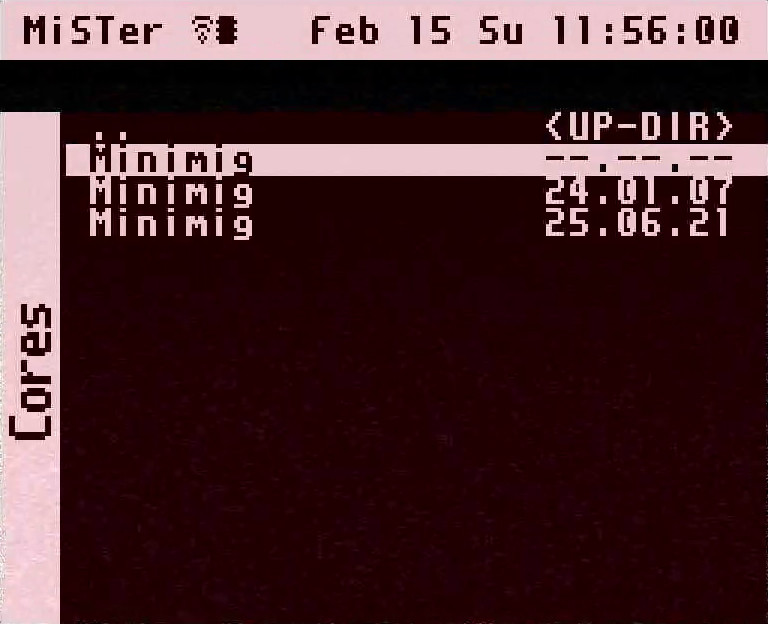
You will have a long list of cores. Scroll to find the Minimig core without a date and start it.
Your core will now start as usual. Bring up the Menu.
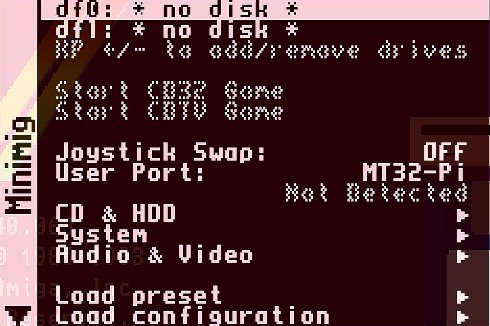
If you don't see the User Port option, then please go back and re-install the files from this site.
Assuming you have the MiSTer Floppy board connected, scroll down to the User Port option and switch it to MiSTer Floppy
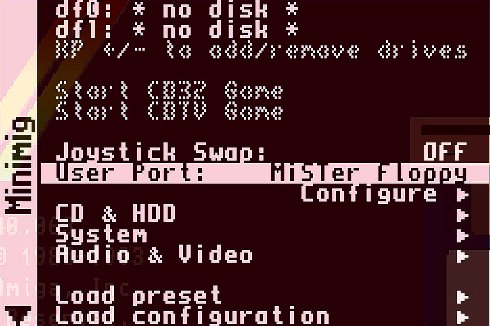
If the board was detected you will see the word Configure below it. Choose this option to setup your physical drives.
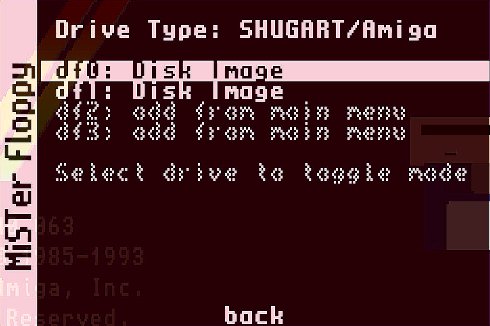
This shows you what mode MiSTer Floppy is running in via its jumper selection (either Shugart or IBM/PC).
Select the drive you want to configure and press space, enter, fire, + or - to configure and change it's type. Note in the IBM/PC mode you can only choose between External Drive A and B.
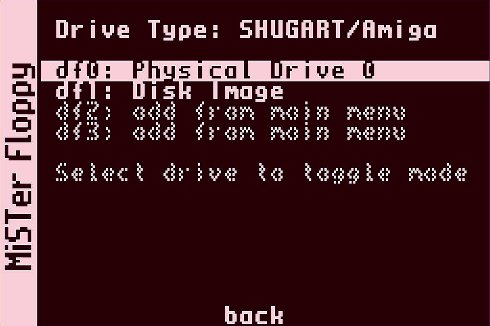
If you are using the MiSTer floppy in Shugart mode, then you'll get options for External Drive 0 to 3 instead.
All four drives are accessible via the flat cable, but only the FIRST drive (0) will latch properly (like the internal Amiga drive).
Drives 1-3 need to use the external logic that is present in External Amiga Floppy Drives and the extra signals used by that connector are available on the Expansion header - I haven't designed a suitable add-on board for this yet, but it would be possible to build one to support four PC drives instead.
Physical drives can be removed from this screen and also from the main Minimig menu by selecting them like you would a file.
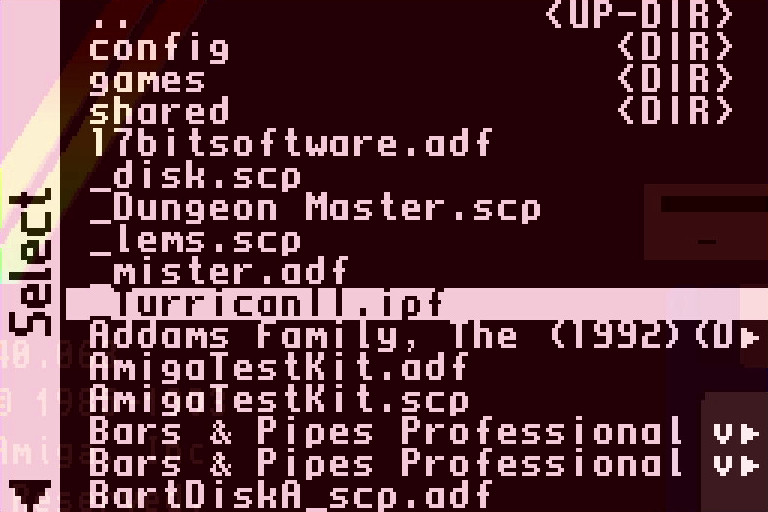
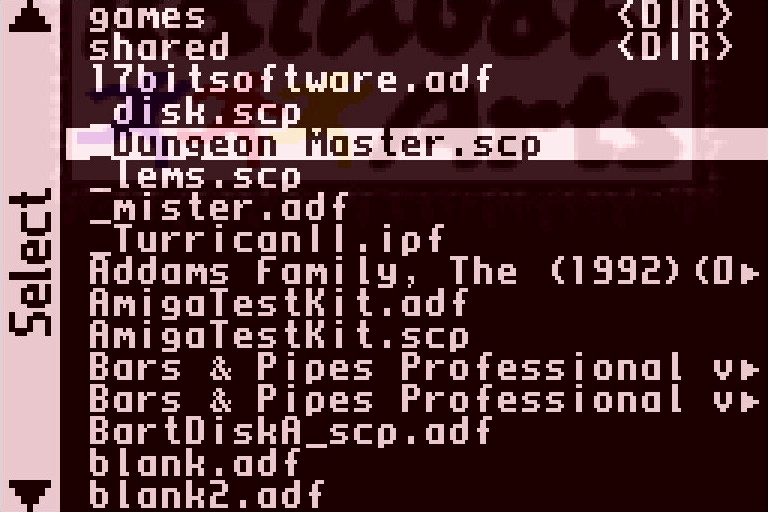
Assuming you have installed all of the required files, when browsing for disk images, any files with the .SCP or IPF extensions will also be shown and can be started as normal.
If IPF files are not displayed then please make sure you have installed the capsimg library to your SD card.

Original MiSTer-kun Cat by hewhoisred and MiSTer Logo by Conrad Fenech
Website & MiSTer Floppy Copyright © 2022-2026 RobSmithDev | Terms and Conditions | Privacy Policy

